





Setting up dashboards in Baremetrics can transform the way you monitor your business metrics by giving you clear, actionable insights. Whether you are a small business owner or a non-developer looking to track your revenue, churn, and other key performance indicators, Baremetrics offers an intuitive interface that simplifies financial data visualization. This allows you to focus on growing your business rather than getting overwhelmed by raw data. In this tutorial, we will guide you through the process of creating custom dashboards tailored to your specific business needs, enabling you to make informed decisions with ease and confidence.
What you will build
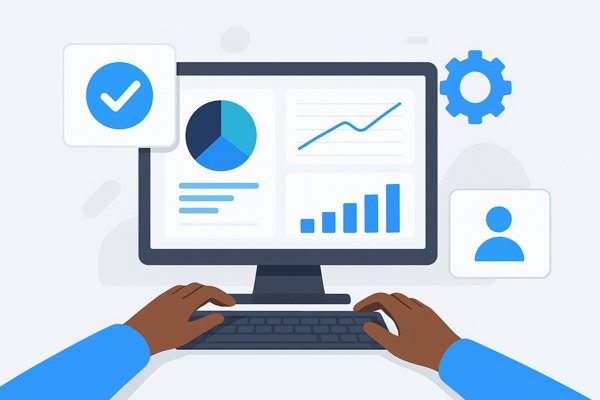
This tutorial will guide you in building a personalized dashboard within Baremetrics that displays essential subscription and revenue data in an easy-to-understand format. You will learn how to configure various types of widgets and arrange them logically so that your most important metrics are prominently visible at a glance.
By the end of this tutorial, you will have a comprehensive dashboard that aggregates critical data such as monthly recurring revenue (MRR), churn rate, customer lifetime value (LTV), customer acquisition cost (CAC), and other relevant KPIs. This dashboard will be your go-to analytics hub for tracking business health and spotting trends as they happen in real-time, providing you with a powerful tool to drive strategic planning.
The ability to create and customize dashboards in Baremetrics allows you to keep tabs on your financial metrics without needing complex spreadsheets, manual data aggregation, or programming skills, making it ideal for beginners, non-technical users, and busy entrepreneurs. This hands-on approach demystifies financial analytics and empowers you to take immediate action based on clear, consolidated insights.
Prerequisites
- Basic familiarity with web applications and navigating online dashboards—to comfortably move around and utilize the platform’s features
- An active Baremetrics account with access to your subscription and payment data—a prerequisite to load your business information into Baremetrics and build dashboards
- Integration of your billing system (such as Stripe, Braintree, or Recurly) with Baremetrics—this linkage is essential to pull live data directly from your payment provider, ensuring accuracy in your dashboards
- Access to a desktop or laptop with an updated web browser—most Baremetrics features require a modern browser for optimal performance
- Permission to create or modify dashboards within your Baremetrics workspace—if you’re part of a team, ensure you have been granted the correct administrative privileges
- Understanding of basic financial terms like MRR, churn, and customer lifetime value (helpful but not mandatory)—this will make interpreting the data easier and help you configure widgets meaningfully
- Stable internet connection for uninterrupted access to Baremetrics—dashboard data loads dynamically, so a reliable connection will prevent interruptions during setup
Step-by-step tutorial
- Log in to your Baremetrics account
- Visit the Baremetrics homepage at baremetrics.com and click on the login button located at the top-right corner.
- Enter your email and password associated with your Baremetrics account carefully to avoid login errors. If you have multi-factor authentication enabled, complete the second verification step.
- Once logged in, you will land on the default analytics overview page, which displays a summary of your current metrics and charts.
- If you experience login issues, try resetting your password or clearing your browser cache before retrying.
- Navigate to the Dashboards section
- On the left-hand side menu, locate and click on the Dashboards tab. This section centralizes all your saved dashboards and options to create new ones.
- If this is your first dashboard, the page will show options to create your initial dashboard.
- Click on the Create Dashboard button prominently displayed to begin setting up a new dashboard tailored to your needs.
- If the Dashboards tab is not visible, you may lack the necessary permissions—contact your account administrator to grant you access.
- Name your dashboard
- Choose a descriptive and meaningful name that reflects the primary focus or purpose of the dashboard—examples include Monthly Revenue Overview, Churn Analysis, or Customer Growth Insights.
- Ensure the name is clear and easy to identify later, especially if your workspace contains multiple dashboards.
- Click Save or Create to set up the blank dashboard workspace and proceed to customization.
- Add widgets to your dashboard
- Click on the Add Widget button to open a menu of available widget options, providing various types of metrics and data visualization formats.
- Select from key metrics such as MRR, Churn Rate, Customer Lifetime Value, Active Customers, New Signups, and Revenue Growth.
- Pay attention to the widget type; some may be line charts, bar graphs, numeric summaries, or area charts—choose the format that best represents the data you want to emphasize.
- Once you select a widget, it will appear on your dashboard in a default position and size, ready for further configuration and rearrangement.
- You can add multiple widgets as needed, but be mindful of dashboard clarity to avoid clutter.
- Configure widget settings
- Click the settings gear icon on each widget to customize various options tailored to your business goals.
- Specify the date range for the displayed data; common options include the last 30 days, current month, last quarter, or custom date ranges to focus on specific periods.
- Choose to compare the displayed metric against previous periods, such as month-over-month or year-over-year comparisons, to identify trends and growth.
- Change visualization types if needed, toggling between line charts, bar charts, pie charts, or simple numeric displays to best communicate the data.
- Apply filters to segment data by product line, subscription plan, customer cohort, or geographical region, enabling more granular insights.
- After configuring each widget, click Apply or Save to lock in your preferences so your dashboard accurately reflects the data you want to track.
- If any widget does not update with your selections, refresh the dashboard or check if your billing integration is syncing correctly.
- Arrange and resize widgets
- Organize your widgets by dragging and dropping them across the dashboard canvas to create an intuitive layout that prioritizes your most critical metrics.
- Use the resize handles on the corners of each widget to enlarge important data points or shrink less frequently referenced ones, optimizing the visual hierarchy of your dashboard.
- Ensure that key information is visible without having to scroll; placing high-priority widgets at the top or in the center helps maintain quick accessibility.
- A well-arranged dashboard aids quick decision-making by reducing visual noise and streamlining your focus to the most impactful KPIs.
- Save your dashboard
- Once you are satisfied with the layout and contents, click the Save button at the top-right corner of the screen.
- Make a habit of saving your dashboard frequently, especially after adding or adjusting widgets, to avoid losing any changes if you accidentally navigate away or if there’s a session timeout.
- Consider periodically exporting or backing up your dashboard settings, if supported, to preserve your configuration in case of account issues.
- Share your dashboard (optional)
- Click the Share or Invite button to provide access to your team members, stakeholders, or clients.
- Choose appropriate permission levels based on your security preferences: view-only access prevents edits, while edit access allows collaborators to modify the dashboard.
- Copy the shareable link generated by Baremetrics or input email addresses directly to send personalized invitations with instructions on accessing the dashboard.
- Sharing dashboards fosters transparency and collaborative decision-making but ensure you review permissions carefully to avoid unintended data exposure or edits.
- Set dashboard as default (optional)
- If you want your custom dashboard to load automatically every time you log in, click the Set as Default option in the dashboard menu.
- This feature saves time and keeps your key metrics front and center, reducing the clicks needed to access essential data daily.
- Especially useful if you manage multiple dashboards, setting a default can help focus your routine analytics review on the most relevant information.
Common mistakes
- Adding too many widgets and overcrowding the dashboard: This often leads to a cluttered, hard-to-navigate interface that overwhelms rather than informs. Try to focus on the most impactful KPIs and limit the number of widgets to maintain clarity.
- Neglecting to configure widget filters: Leaving widgets unfiltered can cause irrelevant or outdated data to display, which may mislead your analysis or production reports. Always verify filters align with your current business questions.
- Failing to save changes regularly: If you forget to save your dashboard setup or changes before navigating away, you risk losing hours of work. Develop the habit of frequent saves, especially after significant edits.
- Not naming dashboards clearly: Generic or vague dashboard names make it difficult to locate specific dashboards when you have multiple projects or teams. Use precise names to help differentiate dashboards quickly.
- Ignoring date range settings: Viewing data without appropriate timeframes risks analyzing outdated or incomplete information. Always double-check date selectors for each widget to ensure data relevance.
- Sharing dashboards without setting appropriate permission levels: Providing edit access to unintended recipients can result in accidental deletion or modification of critical dashboards. Review sharing permissions carefully before distributing access.
- Overlooking the option to set a default dashboard: Not setting a default dashboard means extra navigation every time you log in, potentially wasting time. Establishing a default increases your workflow efficiency.
- Skipping billing integration checks: Sometimes widget data may not update due to broken or incomplete integration with billing services. Verify that your billing system connections are active and syncing correctly to maintain accurate dashboards.
Next steps
Now that your dashboard is set up, consider exploring Baremetrics’ advanced features such as automated reports and alerts to stay proactively informed about your business trends. Automated reports allow you to schedule regular email summaries of your key metrics, keeping you and your team up to date without having to log in daily. Alerts notify you instantly of significant changes—such as a spike in churn or a drop in MRR—enabling you to respond quickly to business fluctuations.
Additionally, you might want to integrate other business tools with Baremetrics to enrich your analytics experience. For example, connecting your customer support platforms like Zendesk or Intercom can help you correlate customer satisfaction with churn metrics. Integrating marketing tools such as Mailchimp or HubSpot enables you to track how campaigns influence subscriber growth and revenue, providing a more holistic view of your business performance.
For more in-depth guides and tips on leveraging AI tools like Baremetrics to boost productivity and decision-making, visit Techzog, where you can find expert advice on using data-driven tools to maximize your business potential and automate analytics workflows effectively.