





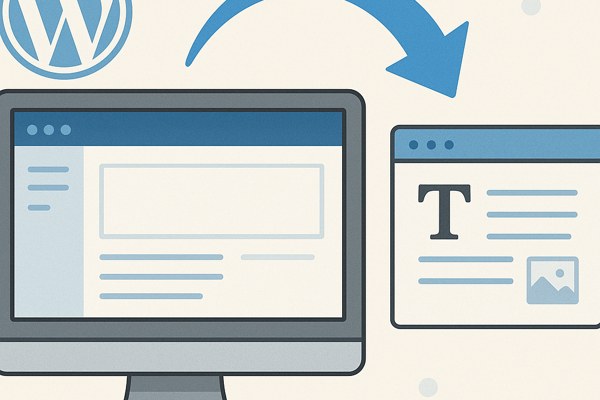
WordPress introduced the block editor, Gutenberg, a few years ago as a new way to create and edit content. While it offers powerful features and flexibility, many users still prefer the simplicity and familiarity of the Classic Editor. If you belong to the group that wants to keep using the Classic Editor for your WordPress site, this guide will walk you through the steps to get it back quickly and easily.
Why Choose the Classic Editor Over the Block Editor?
The block editor provides a modular content creation experience, but it may not suit everyone, especially those who:
- Are used to the old interface and want to avoid a learning curve.
- Use plugins or themes that do not fully support the block editor.
- Need a lightweight editing experience without additional blocks or layouts.
- Prefer HTML-based editing or want to avoid distractions during content creation.
Choosing the Classic Editor can save time and reduce frustration for those focused on straightforward content management.
How to Reinstall the Classic Editor Plugin
The easiest way to revert to the Classic Editor is by using the official Classic Editor plugin maintained by the WordPress team. Follow these steps:
- Log in to your WordPress dashboard.
- Navigate to Plugins > Add New.
- In the search bar, type Classic Editor.
- Locate the plugin by WordPress Contributors and click Install Now.
- Once installed, click Activate.
After activation, all your posts and pages will open with the familiar editor rather than the block editor.
Configuring the Classic Editor Settings
The Classic Editor plugin allows you to customize how and where the editor appears. To adjust the settings:
- From the dashboard, go to Settings > Writing.
- Scroll down to the Classic editor settings section.
- Choose either Allow users to switch editors or Replace the block editor with the classic editor.
- If you select the option to allow switching, users can toggle between editors on a post-by-post basis.
- Save the changes.
This flexibility ensures you can gradually transition your team or keep options open for specific use cases.
Manual Code Approach for Developers
If you prefer not to install a plugin or want a lightweight solution, adding a simple snippet to your theme’s functions.php file can disable the block editor entirely:
add_filter('use_block_editor_for_post', '__return_false');Be cautious when editing theme files; creating a child theme or backing up files beforehand is recommended. This method forces all posts to open with the Classic Editor, removing Gutenberg completely from the editing experience.
Additional Tips to Improve Your WordPress Workflow
- Backup your site: Before making any major changes, ensure you have a complete backup.
- Test your plugins and themes: Some might have compatibility issues with older editors.
- Explore keyboard shortcuts: Classic Editor supports familiar shortcuts that can boost your typing speed.
- Integrate SEO tools: Plugins like Yoast SEO work seamlessly with both editors to optimize your content.
Classic Editor Quick Checklist
- Install and activate the Classic Editor plugin.
- Configure writing settings to set or allow editor switching.
- Test content editing to confirm the Classic Editor loads.
- Backup your site before any major edits.
- Review plugin/theme compatibility.
- Consider code snippet option if avoiding plugins.
Conclusion and Next Steps
Reverting to the Classic Editor in WordPress is straightforward by installing a plugin or using custom code. This can improve your editing comfort and keep workflows consistent, especially if you manage a site with many contributors or legacy content. Make sure to check plugin and theme compatibility regularly to avoid issues. If you want to dive deeper into managing WordPress workflows or marketing your app effectively, check out our development guides for practical tips and tools.
If you think that you have a link that adds value to this article please contact us at techie[at]techzog[dot]com for evaluation of inclusion into the article.
Comments left solely for spamming links will be deleted. Thank you for understanding.