








Creating an app that generates images from text prompts can elevate your project’s creativity and user engagement. With OpenAI’s latest image generation capabilities embedded in their API, it’s now easier than ever to build an app that delivers high-quality visuals tailored to your needs. This guide walks you through the practical steps to build an image generator app that harnesses these powerful features.
Getting Started With OpenAI’s Image Generation API
The OpenAI image generation API offers advanced tools to create detailed images from natural language descriptions. The latest iteration supports generating images in 4K resolution, multiple aspect ratios, and up to eight variants per prompt. This provides incredible flexibility for developers, marketers, and founders aiming to rapidly produce unique visuals.
Before diving into code, here’s what you’ll need:
- An OpenAI API key from the OpenAI platform
- A development environment supporting your preferred language (Python, JavaScript, etc.)
- Basic understanding of REST APIs and HTTP requests
Step 1: Setting Up Your Project and Environment
Start by setting up a simple project structure. Whether you’re building a web app with React, a mobile app, or a backend service, the API calls will remain generally the same:
- Install necessary libraries to make HTTP requests (e.g., axios or fetch for JavaScript, requests for Python)
- Store your API key securely, never exposing it in public code repositories
For example, if you use Node.js, you can initialize your project and install axios:
npm init -ynpm install axios
Set your API key in environment variables and load it within your app.
Step 2: Crafting Requests to Generate Images
Images are created by sending a POST request to the image generation endpoint with parameters like prompt text, image resolution, or number of variants.
Here’s a practical example of a request payload:
- prompt: Text describing the image you want to generate (e.g., “a futuristic city skyline at sunset”)
- n: Number of image variations to generate (up to 8)
- size: Choose from 256×256, 512×512, or 1024×1024, or custom 4K resolutions depending on use case
- aspect_ratio: Set custom aspect ratios if needed to fit specific display requirements
In your app, handle the API response by extracting the image URLs and displaying them or saving them for later use.
Step 3: Enhancing User Experience and Features
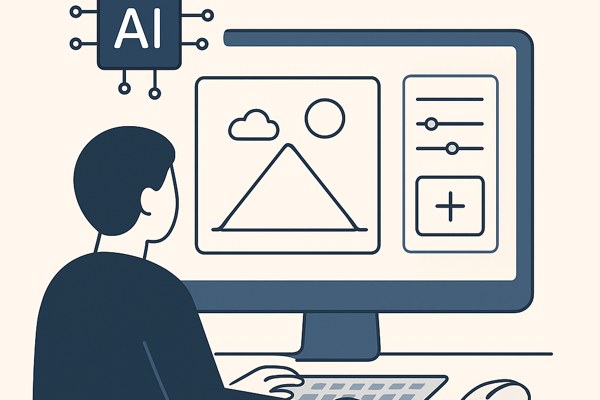
To make your image generator app practical and user-friendly, consider incorporating the following:
- Prompt input validation: Ensure prompts meet length and content guidelines to avoid errors
- Image variant selection: Allow users to browse generated variants and select favorites
- Multilingual support: Use the API’s multilingual text rendering to allow prompts in languages like Japanese, Hindi, or Bengali
- Custom aspect ratio adjustments: Enable users to specify image dimensions based on their project’s needs, such as banners or thumbnails
- Saving and exporting: Provide options to download images or directly share them through social media or messaging
Step 4: Managing Costs and Optimizing Usage
OpenAI’s API pricing depends on image resolution and quality. Here are practical tips to keep your app both responsive and budget-conscious:
- Start with lower-resolution images (256×256) for rapid previews and user trials
- Offer high-resolution 4K images as premium or on-demand features
- Limit the number of image variations generated per prompt to manage compute costs
- Batch requests where possible to streamline API calls
Checklist for Your Image Generator App
- ✅ Obtain and safely store your OpenAI API key
- ✅ Build a user interface for prompt input and image display
- ✅ Integrate API calls with correct request parameters (prompt, size, variants)
- ✅ Implement error handling for API responses
- ✅ Provide options to save, download, or share generated images
- ✅ Monitor usage and optimize for cost-efficiency
Conclusion and Where to Go Next
Building an image generator app with OpenAI’s API combines powerful image creation features with practical developer tools. By following the steps outlined above, you can create a tool that elevates your brand visuals, marketing campaigns, or creative projects with minimal coding. If you want to dig deeper into optimizing API usage or integrating this feature into larger systems, explore our development guides.
For complete API documentation and up-to-date capabilities, visit the official OpenAI image generation guide. With thoughtful implementation, your app can quicken workflows, inspire creativity, and unlock new possibilities for visual content.