







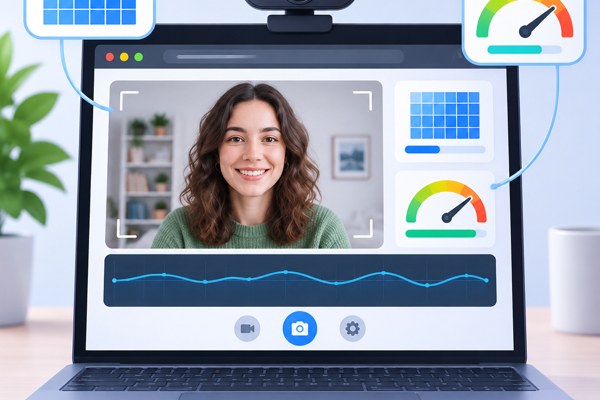
Whether you’re a founder preparing an app demo, a marketer setting up a live campaign, or simply want to optimize your video calls, knowing your webcam’s resolution and frame rate is key to delivering clear visuals and smooth motion. Testing your webcam directly in the browser is the quickest and most convenient way to get accurate details about your camera’s capabilities without needing special software.
Why Check Your Webcam Resolution and Frame Rate?
Webcam quality can vary widely depending on the hardware, lighting, and software setup. Resolution determines the sharpness and clarity of the image, typically measured in pixels (e.g., 1280×720 or 1920×1080). The frame rate (frames per second or FPS) affects how smooth motion appears, especially in video streaming or presentations.
- Optimize video quality: High resolution and sufficient FPS provide clearer and smoother video, important for professional presentations or recorded content.
- Reduce technical problems: Identifying your webcam’s actual performance helps troubleshoot blurry or choppy video issues.
- Match app requirements: Many apps specify minimum webcam standards; testing ensures compatibility before important calls or streams.
How to Test Webcam Specs Using Browser-Based Tools
Several websites offer free, no-install webcam tests that run entirely in your browser. They provide live video previews alongside measured resolution and frame rate stats. Here are some top options:
- Browser.camera Webcam Test: Provides actual resolution, frame rate, and detailed hardware controls such as zoom and focus.
- MyCamTest: Offers resolution selection, live frame rate readings, fullscreen preview, and screenshot capability.
- WebcamTest.com: Displays resolution, aspect ratio, megapixels, and frame rate live for complete diagnostics.
For reliable results, test your webcam in an environment with consistent lighting and avoid running other apps that use the camera simultaneously.
Step-by-Step Guide to Testing Your Webcam
- Open your preferred webcam test website in a modern browser (Chrome, Firefox, Edge).
- Grant camera access permission when prompted.
- Observe the live video feed and note what resolution the test tool detects. Most webcams run at 720p (1280×720) or 1080p (1920×1080).
- Check the displayed frame rate. A good webcam should hit 30 FPS consistently for smooth motion.
- Explore any available controls, such as adjusting exposure, zoom, or white balance to improve video quality.
- Optionally take a snapshot or record a short clip if your test site supports it for further evaluation.
Improving Webcam Performance Based on Test Results

If your webcam is not performing as expected, try these practical tips:
- Update drivers: Ensure your webcam’s drivers and firmware are up to date from manufacturer websites.
- Upgrade lighting: Better lighting reduces noise and increases clarity, improving both resolution appearance and frame rates.
- Close other apps: Stop other programs that might be using the webcam or consuming CPU resources to free bandwidth.
- Adjust settings: Use hardware controls (if available) to fine-tune focus, zoom, and exposure for clearer images.
- Test different USB ports: Connecting your webcam directly to a USB 3.0 port can enhance data transfer speeds, improving frame rate.
Webcam Recommendations for Different Needs
If you require a new webcam or want to upgrade, here are some budget-friendly options known for performance and reliability:
- eMeet C960: Offers 1080p resolution at 30 FPS, a wide 90-degree field of view, and low-light correction, ideal for calls and presentations.
- Depstech DW49 Pro: Delivers 4K video and autofocus, good for high-detail streaming or recording.
- Logitech C310: A portable 720p webcam suitable for basic video conferencing.
- Obsbot Mini 2: Advanced 4K resolution with AI tracking and digital zoom, great for streamers and content creators.
Quick Checklist for Testing and Optimizing Your Webcam
- Choose a trustworthy webcam test site like Browser.camera to assess resolution and FPS accurately.
- Test in good lighting and quiet computing environments.
- Note actual resolution and frame rate stats and compare them against your needs.
- Use in-built hardware controls to optimize image quality.
- Update drivers and close conflicting apps to maximize performance.
- Consider upgrading to a recommended webcam model if your current device falls short.
- Save or screenshot test results to benchmark improvements over time.
Conclusion and Next Steps
Testing your webcam’s resolution and frame rate in the browser is a straightforward way to understand its capabilities and limitations without complex tools. With this knowledge, you can ensure your video content, app demos, or virtual meetings are crisp and smooth. Start by trying one of the trusted online tests like Browser.camera, analyze the results, and make adjustments or upgrades based on real data.
For more practical tips on improving your app development and marketing productivity, check out our resources at Techzog Development Guides to keep building your tech skills effectively.