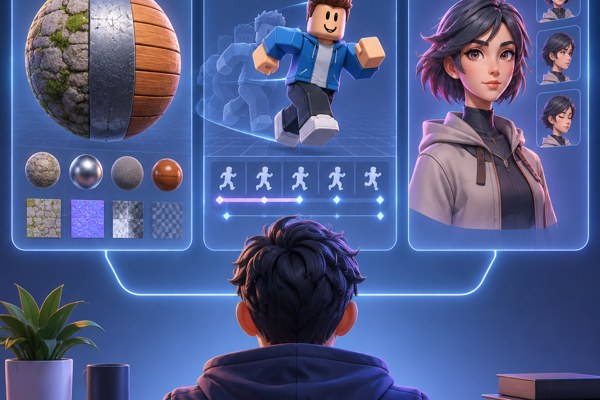










Creative professionals, founders, marketers, and anyone interested in crafting high-quality images and videos now have a powerful, free tool at their fingertips. ArtCraft brings a comprehensive suite of desktop applications designed to handle everything from photo editing to 3D scene composition, all in one package. This guide walks you through how to get started with ArtCraft on your desktop and make the most of its features to enhance your creative projects and productivity.
Getting Started with ArtCraft on Your Desktop
ArtCraft is a free, open-source creative suite available for Windows and macOS, with Linux builds accessible from source. Unlike many subscription-based creative platforms, it offers a powerful set of applications without a financial barrier, making it especially appealing for startups, solo entrepreneurs, and marketers looking to create original visual content.
To get started:
- Visit the official ArtCraft site to download the desktop installer for your operating system.
- Follow the installation wizard to set up the suite on your machine.
- Launch the ArtCraft workspace, which acts as an integrated environment to access all applications seamlessly.
Once installed, you will have access to eight specialized applications, each targeting different aspects of creative workflows.
Overview of ArtCraft’s Core Applications
ArtCraft organizes creative tasks into dedicated apps, helping users focus on specific production areas without clutter or complexity. Here’s an at-a-glance summary of what each application does:
- PhotoCraft: Edit and enhance photos with layering and effects.
- FilmCraft: Compose and edit video projects with multi-track timelines and scene staging.
- VectorCraft: Create crisp vector graphics and icons for branding or UI design.
- LightCraft: Manage lighting and shadows for 3D environments and scenes.
- PrintCraft: Prepare high-resolution materials optimized for print production.
- EffectCraft: Add visual effects and transitions tailored for video and image output.
- DesignCraft: Layout complex design projects combining text, images, and graphic elements.
- GridCraft: Organize assets and layouts with responsive grids to maintain consistency.
This modular approach lets you pick the right tool for the task at hand while benefiting from a unified system.
Creating and Composing Your Visual Projects
ArtCraft excels at integrating multiple layers and elements into coherent images or videos. Whether you’re editing a photo or staging 3D characters, the suite lets you combine backgrounds, cutouts, and drawings—or stage whole scenes using 3D assets and cameras.
Practical steps for composition:
- Start with PhotoCraft or FilmCraft depending on your project type (image or video).
- Use layers for arranging different visual components like backgrounds, characters, and effects.
- In 3D projects, deploy LightCraft to set up realistic lighting and shadows that enhance depth.
- Employ GridCraft to ensure all elements are aligned and proportioned for design consistency.
ArtCraft supports output resolutions up to 4K, enabling professional-quality visuals suitable for marketing campaigns, app assets, or presentations.
How to Manage Generation and Licensing Costs
While downloading and using ArtCraft is free, creating images and videos involves generation costs controlled through a flexible credit system. The suite supports three methods to manage this:
- Using credits earned within the platform.
- Adding your own API keys from supported services.
- Leveraging existing subscriptions tied to your account.
This model provides control over expenses and lets you scale your usage according to project demands without surprise fees.
Best Practices for Using ArtCraft Efficiently
Making the most of ArtCraft requires some strategic approaches, especially for users new to integrated creative suites:
- Plan your project: Outline key visuals and the story you want to tell before diving in.
- Start simple: Use PhotoCraft or VectorCraft to build basic assets before expanding into complex video or 3D scenes.
- Leverage community resources: Participate in online forums or join ArtCraft’s community to access tutorials and tips.
- Experiment with effects: Use EffectCraft to add polish and engage your audience through creative transitions and filters.
- Regularly save and export: Keep versions of your work and export drafts for feedback.
Essential Checklist to Kick Off Your ArtCraft Workflow
- Download and install ArtCraft for your desktop OS.
- Create an ArtCraft account to manage credits and subscriptions.
- Explore the eight applications and list which fit your project.
- Set up a project folder and organize your assets before creation.
- Experiment with small edits to familiarize yourself with the suite.
- Start composing layers or scenes depending on your output medium.
- Apply lighting and effects strategically to enhance depth.
- Export your work in the desired resolution up to 4K.
Conclusion and Next Steps
ArtCraft provides an impressive, zero-cost entry point for anyone looking to create professional-grade images and videos without subscribing to expensive software. Its wide range of dedicated apps, flexible credit system, and support for desktop workflows make it an ideal choice for marketers, founders, and builders focused on productivity and creativity.
To take the next step, download ArtCraft from the official site and explore its documentation to understand each application’s strengths. For a deeper dive into creative strategies and techniques, visit our development section for insights tailored to app creators and marketers. As the tools continue evolving, staying engaged with the community will unlock even more opportunities to elevate your creative output.